

A small round screen inside a ring you turn and press. Put one anywhere in the rig and every reading and every switch is a few clicks away. Leave it alone and it is a clock.
What's Inside / Display
Mount one by the door, one by the bed, one in the galley. Each dial shows what matters in that spot, and every one of them can reach the whole rig. You feel each click under your fingers, so you are never hunting for a tiny icon on a screen.
Capstan runs on off-the-shelf ESP32-S3 rotary displays from Makerfabs and Elecrow in three sizes: 2.1, 1.46 and 1.28 inches. One firmware builds for all three. It joins your rig's own WiFi and talks to Headwaters, so there is no bus cable to run, only power over USB-C.

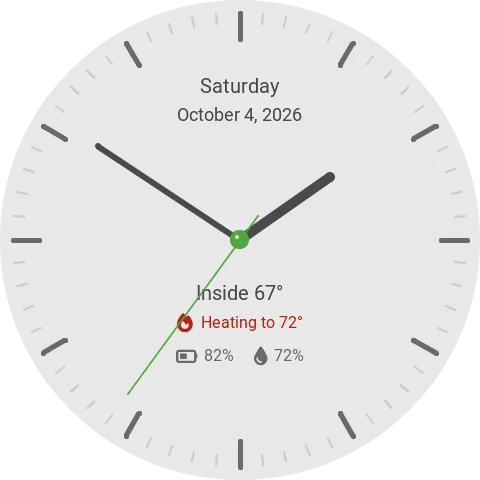
This is the 2.1-inch dial, running on the page. Grab the ring and turn it. Click to press. Click and hold to go back.
Start from the clock: turn the ring or press to wake it, then find Climate and dial in a temperature, switch the awning light from Devices, or pick a different clock face in Settings. Leave it alone for 30 seconds and it goes back to the clock, same as the real one.
Every screen is drawn by Capstan's own interface code, the same pixels the dial puts on its glass. The readings are sample numbers, and the dial here is already set up and connected.
Three moves run the whole thing, by feel, with one hand. No aiming for a spot on the glass, and no smudges on it either.
Move through your screens, your devices, or a setting. One click of the ring is one step, every time, so you learn it by feel.
Open, toggle, confirm. On the 2.1-inch you press the ring. On the two Elecrow dials the whole screen is the button, so you press the glass itself.
Go back, from anywhere. There is no back arrow taking up room on a small round screen. Touch is switched off on purpose: nothing happens by accident when you brush past it.

Walk away and the dial settles back to a clock face. Along with the time, it tells you what the heat is doing, and on the classic face your battery and fresh water, without a single press.


Pick a face in Settings, choose 12 or 24 hour time, and set how long the dial waits before it goes back to the clock, from 15 seconds to never.
Press once and the menu comes up. Turn to the thing you want and
press again. If a module goes quiet, its reading turns to
-- instead of showing you an old number that looks live.


The two Elecrow dials carry a ring of RGB LEDs around the glass, eight on the 1.46-inch and five on the 1.28-inch. Capstan uses them to tell you things from across the room.
Brightness is capped, so the ring glows rather than glares. The 2.1-inch has no LED ring; everything it needs to say is on the screen.
Connect it once from your phone, give it a job in Overlook, and make it yours from its own Settings menu.
Nobody wants to type a WiFi password with a knob. On first boot the dial creates its own WiFi network and shows its name and password on screen. Join it from your phone, enter your rig's WiFi and the details for Headwaters, and the dial restarts already connected. No app to download and no internet needed, so it works at camp with no signal.
The small screen is for using your rig, not configuring it. In Overlook, running on Headwaters, you choose dial by dial which devices show up and which alarms it watches, up to eight and six. The one by the door watches the entry and the awning light. The one by the bed runs the fan and the reading lights. Every dial still reaches energy, water, air and leveling.
Each dial keeps its own copy of its alarm rules and works out when to raise them itself, so a door left open still gets flagged even while the Headwaters software is restarting. Snooze length is yours to set.
Personal touches stay on the dial, in short menus under Settings that you turn and press through: the clock face, 12 or 24 hour time, Fahrenheit or Celsius, and inches or millimetres for leveling.
There is a light theme for a bright galley and a dark one that disappears into the wall at night. One press switches it, and the dial remembers. The colours, fonts and icons are the same ones Milepost uses, so two TrailCurrent screens side by side match exactly, not nearly.


All three are stock boards, straight from the vendor. No custom PCB, and no soldering for the dial itself.
All three are ESP32-S3 with 16 MB of flash and 8 MB of PSRAM, WiFi, and USB-C for power and flashing. The firmware is ESP-IDF with LVGL, and the board is picked at build time, so there is one source tree and no per-board branches.
Every screen is laid out in EEZ Studio, one project per screen resolution, all generated from a single description so the three sizes cannot drift apart. The screen images on this page come straight from that UI code, drawn by the same graphics library the dial runs.
 Powered by EEZ Studio
One board and a USB-C cable.
The 2.1-inch for a main wall where you want the biggest screen. The 1.46-inch or 1.28-inch for tight spots, and for the LED ring.
The vendors do not publish recovery images, so save the one on your board before flashing anything. The repo shows how.
Choose your board in the build settings, build with ESP-IDF, and flash over USB-C. The build guide walks through it.
On first boot the dial creates its own WiFi network. Join it from your phone, enter your rig's WiFi and the details for Headwaters, and it restarts connected. No app, no internet needed.
In Overlook's settings, pick the devices and alarms this dial should handle. The dial picks them up on its own.
The dial needs no soldering. The rest of a TrailCurrent system does need some wire-to-wire soldering, so plan for that when you add your next module.

The ones people ask first.
Three off-the-shelf ESP32-S3 rotary displays: the Makerfabs MaTouch ESP32-S3 Rotary 2.1 inch (480 by 480), the Elecrow CrowPanel 1.46 inch Rotary (360 by 360) and the Elecrow CrowPanel 1.28 inch Rotary (240 by 240). One firmware builds for all three. No custom circuit board and no soldering for the dial itself.
Yes, if it is one of the three boards above. Back up the factory firmware first, because the vendors do not publish recovery images, then build Capstan with ESP-IDF and flash it over USB-C. The repository has step by step instructions for both.
No. On first boot the dial creates its own WiFi network. You join it from your phone, enter your rig's WiFi and the details for Headwaters, and it restarts connected. There is no app to download and nothing goes to the cloud, so it works at camp with no signal.
In Overlook, running on Headwaters, you pick up to eight devices and six alarms for each dial separately, so a dial by the door and a dial by the bed can do different jobs. Personal settings such as the clock face, light or dark theme, 12 or 24 hour time and units are chosen on the dial itself.
Touch is deliberately switched off. Everything is done by turning the ring, pressing, and pressing and holding to go back, so nothing happens by accident when you brush past it.
Not yet. The Climate screen shows the live inside temperature today, and the setpoint dial is built into the interface, but TrailCurrent's thermostat control that it will drive does not exist yet. Everything else on the dial works with modules that exist now.
Yes. The firmware, the EEZ Studio screen projects and the documentation are MIT licensed on GitHub, like every TrailCurrent project. No subscription, no paid tier.
Firmware, EEZ Studio projects, and the board notes are all in the repository. Pick a board, flash it, and give that corner of your rig a dial. The announcement post tells the story behind it.